Installation & help
IQ Panel 5: Placement & Setup
Get your prepared control panel into a suitable location, keep its configuration intact, and know what to check with Major.
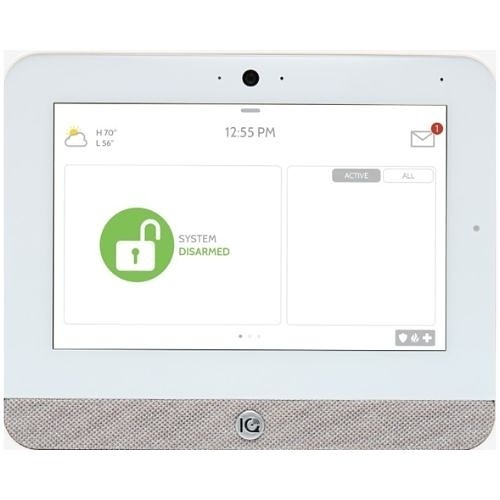
Start with the panel prepared for your order
For a new system with Major monitoring, the ordered sensors are enrolled, named and labeled before shipment. Keep the device-location list beside the panel. You do not need to erase its configuration or start by learning the sensors again.
Major includes the panel stand, standard wall mount, mounting tape and a quickstart guide with new system kits. The stand and wall mount provide different installation options; the right choice depends on the installation requirements. Check the actual packing list and manufacturer instructions.
Have the supplied power adapter and lead, your order details, the labeled sensors and your phone ready. Your Alarm.com account is created during the activation call, after installation. You can prepare the panel’s position and power before that call.
Choose a useful location
Somewhere you can use it
Choose a stable indoor position where the touchscreen can be reached and the display is easy to read. Plan the route you normally use when entering or leaving so operation is convenient.
Somewhere it can communicate
Review the proposed location with Major before making mounting permanent. The actual property, construction and device locations affect communication; a centrally drawn point on a floor plan is only a starting idea.
Suitable power nearby
Use the supplied adapter and lead at a continuously powered, unswitched outlet in the same room. Route the cable so it is not pinched, stretched or a trip hazard. Do not substitute an adapter merely because its plug fits.
The right mounting method
The manufacturer supports a table stand in applicable installations; some listed installation types require wall mounting and tamper protection. Follow the stand/backplate and locking-screw instructions for your actual configuration.
Custom cable runs, concealed wiring, different power arrangements and installation requirements should be discussed with Major or a qualified installer before work begins.
Bring the panel into service without starting over
-
Check the packing list and labels
Compare the panel and sensor labels with the plan supplied for your order. Tell Major about missing items or a device name that does not match the intended location.
-
Follow the supplied mounting and power instructions
Use the installation manual’s illustrated instructions for the chosen stand or wall-mount arrangement (pages 9–10); the quick guide illustrates wall mounting. Major’s preparation may affect the panel’s shipped battery/power state; do not open the panel or disconnect its battery simply because it looks different from an unconfigured unit.
-
Read the screen before changing anything
If the panel does not start as expected, check the outlet and supplied external power connections, then contact Major with the screen message. Avoid factory resets, installer-menu changes or deleting devices as a first troubleshooting step.
-
Arrange checks and activation
Call Major after installation and before producing test alarms. We review the prepared device names and reporting setup, create your Alarm.com account and coordinate testing.
Ready for your activation call?
- The panel is secure in the appropriate stand or wall-mount arrangement.
- The supplied adapter and lead have a suitable continuously powered outlet.
- Device labels match the planned locations; any changes have been noted.
- You have recorded any trouble message instead of clearing it by resetting.
- You can access your phone and email at the property.
- You will call Major before initial or routine alarm testing.
Call (800) 564-8273 during office setup hours, Monday–Friday, 9 a.m.–4 p.m. Eastern. Full activation is completed within 24 hours of the activation call. Wait for Major to confirm that monitoring is active.
Questions about the panel
Do I need the extra IQ Remote touchscreen?
No. The IQ Panel 5 is the primary control panel and already has its own touchscreen. The optional IQ Remote is another control point for a compatible setup, not a replacement for the main panel.
Does the panel’s cellular connection run my camera?
No. Activated cellular alarm reporting and camera video are separate paths. The ADC-V516 needs home Wi-Fi and broadband internet for its video service.
Can I reuse the system at a different address?
Call Major before moving an activated system. The monitored address, account details, eligibility, device placement and testing must be reviewed for the new property.
Manufacturer instructions
Use the instructions for the exact panel and software supplied. This guide covers preparation and the Major setup process; it does not replace the installation manual.
Your next step
Written guides are available to everyone. Preprogramming, setup assistance and ongoing technical support are included with Major Home Security monitoring. Equipment-only purchases include free written guides, without personalized programming or technical support.